

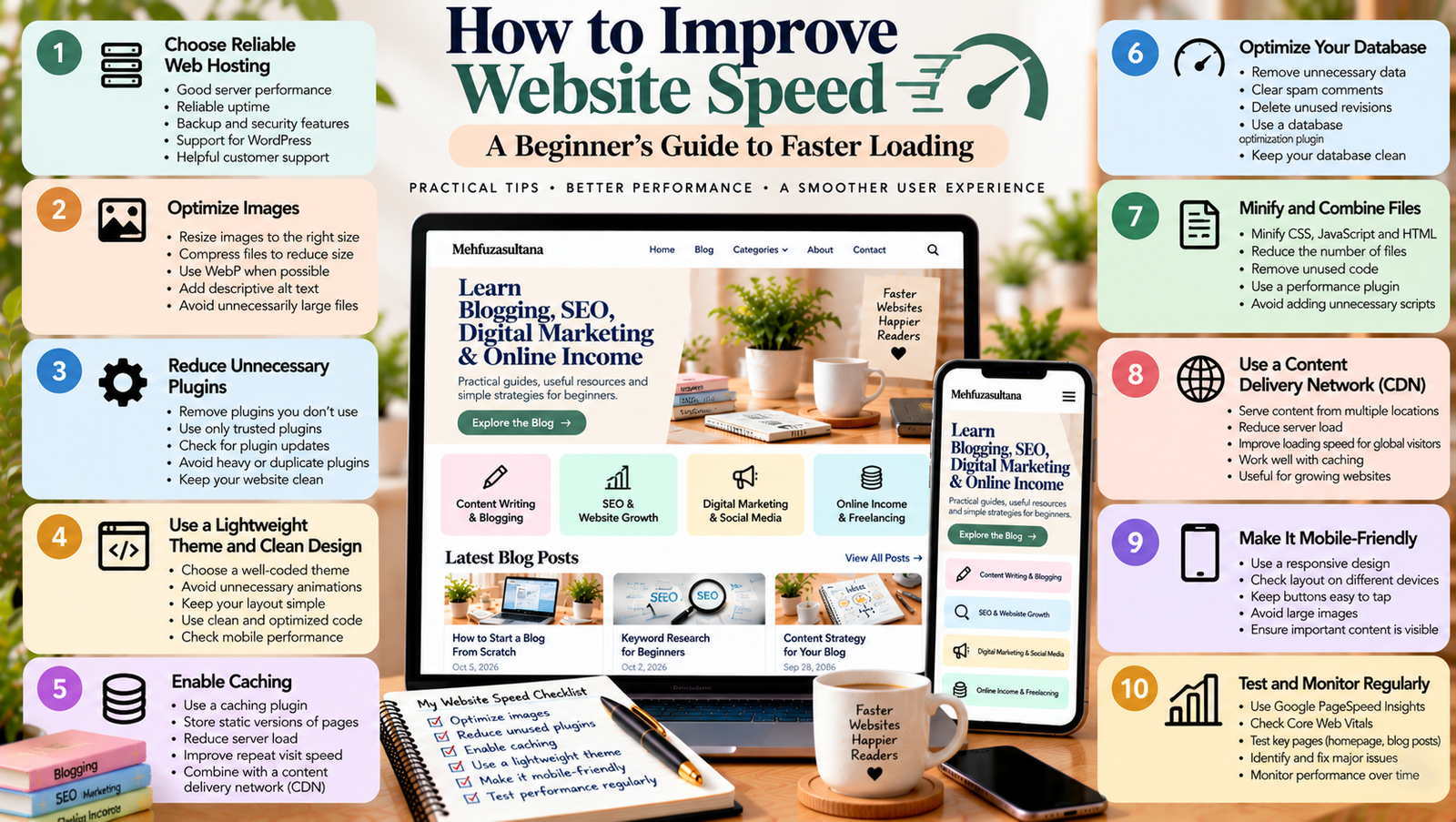
Website speed plays an important role in the success of your website. When a page loads quickly, visitors can find information without unnecessary delays. However, a slow website can frustrate readers and make it harder for them to explore your content.
Imagine someone clicks your blog post after finding it on Google. If the page takes too long to load, the visitor may leave before reading a single paragraph. As a result, you could lose an opportunity to engage a reader or gain a potential customer.
The good news is that you do not need advanced coding skills to improve website speed. Simple steps, such as optimizing images, reducing unnecessary plugins, and choosing reliable hosting, can make a difference.
In this guide, you will learn what affects website speed, how to test your website, and which improvements you can make to create a faster experience for visitors.
What Is Website Speed?
Website speed refers to how quickly a website loads and becomes usable for visitors. It includes more than the time needed to display the first part of a page.
For example, a page may show its heading quickly but still take several seconds to display images or respond to clicks. Therefore, it is important to consider both loading time and the overall user experience.
Website performance can depend on several factors, including:
- Your web hosting service.
- Image and video file sizes.
- WordPress themes and plugins.
- Website code and scripts.
- Browser caching.
- Server response time.
- The visitor’s device and internet connection.
Understanding these factors helps you identify the problems that may be slowing down your website.
Why Is Website Speed Important?
A fast website makes it easier for visitors to access information. It also supports a smoother browsing experience.
Here are some important reasons to improve your website performance.
1. Better User Experience
Visitors expect websites to respond quickly. When pages load without unnecessary delays, readers can move between articles and explore your website more comfortably.
On the other hand, slow pages can interrupt reading and make navigation frustrating.
2. Support for SEO
Google uses page experience signals and Core Web Vitals as part of its broader approach to evaluating user experience. However, speed alone does not guarantee higher rankings.
Useful content, search intent, website structure, and many other factors also matter. Therefore, combine performance improvements with a strong content and SEO strategy.
You can read the Google Search Central SEO Starter Guide to understand other important SEO practices.
3. Improved Mobile Experience
Many visitors access websites through smartphones. A page that loads slowly or shifts around while opening can create a poor mobile experience.
Optimizing images, reducing unnecessary scripts, and improving your page layout can help visitors browse more comfortably.
4. Better Business Opportunities
If you run a business website, an online store, or a freelance portfolio, performance can affect how easily visitors explore your services.
A smooth website experience helps people find information, review your work, and reach your contact page without unnecessary delays.
How to Test Your Website Speed
Before making changes, test your website. This gives you a starting point and helps you identify areas that need attention.
Use Google PageSpeed Insights
Google PageSpeed Insights is a free tool that analyzes web pages and provides performance recommendations.
Follow these steps:
- Open Google PageSpeed Insights.
- Enter your website or page URL.
- Select the mobile or desktop report.
- Run the analysis.
- Review the performance score and recommendations.
- Identify the issues that appear most important.
Test individual pages as well as your homepage. A homepage may load quickly while an article with several large images performs poorly.
Understand Core Web Vitals
Core Web Vitals measure important parts of the user experience. Three key metrics are particularly useful.
- Largest Contentful Paint (LCP): Measures how quickly the main content becomes visible. A good result is 2.5 seconds or less.
- Interaction to Next Paint (INP): Measures how responsive a page is to user interactions. A good result is 200 milliseconds or less.
- Cumulative Layout Shift (CLS): Measures unexpected movement of page elements. A good result is 0.1 or less.
These thresholds help you understand whether a page provides a good experience according to Google’s guidance. Results can vary between laboratory tests and real-user data.
Do not focus only on achieving a perfect score. First, identify problems that affect loading, interaction, or visual stability.
1. Choose Reliable Web Hosting
Your hosting service stores your website files and delivers them to visitors. Therefore, hosting can affect how quickly your pages respond.
Very limited hosting resources may struggle when your website receives more visitors or runs resource-heavy plugins.
When choosing hosting, consider:
- Server performance and reliability.
- Support for your website platform.
- Backup options.
- Security features.
- Customer support.
- The resources included in your plan.
If your website regularly loads slowly, check your hosting performance before making expensive design changes.
However, do not upgrade your hosting automatically. First, test your website and check whether the problem comes from large images, plugins, or other factors.
2. Optimize Images for Faster Loading
Large image files are a common reason for slow blog pages. High-quality images are useful, but they do not need to be unnecessarily large.
Image optimization reduces file size while maintaining suitable visual quality.
Here is how to optimize images for your website:
- Resize images to match their display dimensions.
- Compress images before uploading them.
- Use WebP or another suitable modern image format.
- Avoid uploading several versions of the same image unnecessarily.
- Add descriptive alt text for accessibility.
- Use lazy loading for suitable images below the initial screen.
For example, if an image appears at a width of 800 pixels, uploading a much larger file may waste bandwidth unless a larger version is needed for responsive displays.
Also, avoid lazy-loading the main image that visitors see immediately when the page opens. Loading that image promptly can help improve the initial experience.
3. Remove Unnecessary WordPress Plugins
Plugins add useful features to WordPress. However, unnecessary or poorly optimized plugins can increase page requests, load additional scripts, or create conflicts.
Review your installed plugins regularly.
Ask yourself:
- Do I still use this plugin?
- Does another tool already provide the same feature?
- Does the plugin load scripts on every page?
- Is it maintained and compatible with my WordPress version?
Remove plugins you no longer need. Before making major changes, create a backup and test your website afterward.
Remember that the number of plugins alone does not determine website speed. One poorly optimized plugin may create more problems than several lightweight plugins.
4. Use Caching to Improve Loading Time
Caching stores certain website resources so the server does not need to generate or retrieve everything from scratch for every visit.
For example, page caching can serve a saved version of a page to visitors. Browser caching can allow returning visitors to reuse certain files already stored on their devices.
Depending on your hosting setup, you may be able to use:
- Page caching.
- Browser caching.
- Server-level caching.
- Object caching for suitable websites.
Many WordPress hosting providers offer built-in caching features. Some caching plugins also provide settings that help improve performance.
Before enabling caching, check your hosting provider’s recommendations. Avoid running several overlapping caching tools because they can cause conflicts or display outdated content.
After making changes, clear the relevant caches and test your website again.
5. Choose a Lightweight WordPress Theme
Your WordPress theme controls much of your website’s layout and appearance. A theme with excessive effects or unnecessary features may add extra resources.
A lightweight theme can help you build a cleaner website without loading features you never use.
When reviewing your theme, check whether it offers:
- Responsive layouts.
- Simple typography settings.
- Efficient code.
- Useful customization options.
- Compatibility with your page builder.
- Regular updates and support.
If you use Elementor, review the widgets and design elements on your pages. Remove unnecessary animations and complex sections that add little value.
You do not always need to change your theme to improve speed. First, optimize your existing design and test the results.
6. Reduce Unnecessary Scripts and Animations
Websites often use scripts for analytics, social sharing, chat widgets, advertisements, animations, and other features.
Although these tools can be useful, too many scripts may delay page rendering or affect responsiveness.
Review the third-party tools installed on your website. Remove features that do not support your goals.
For example, if you do not use a particular chat widget, removing it may reduce unnecessary loading. Similarly, replacing several animated elements with a simpler layout may improve the user experience.
If you use analytics tools, keep the tools that provide useful information. The goal is not to remove every script but to avoid loading resources without a clear purpose.
7. Use a Content Delivery Network When Needed
A content delivery network, or CDN, stores copies of suitable website resources across multiple servers. Visitors can then receive those resources from a server closer to their location.
A CDN can be useful when your audience is spread across different regions or your website serves many images and other static files.
However, not every small blog needs a CDN immediately. Your hosting, page design, and image sizes may have a greater impact on performance at the beginning.
Start with basic optimization. Consider a CDN if your testing shows that it could help your website and your hosting setup supports it.
8. Keep Your Website Updated
Outdated software can create security, compatibility, and performance problems.
Keep WordPress, your theme, and your plugins updated. Before major updates, make a backup and check that your important features continue to work.
You should also remove unused themes and plugins when appropriate.
Updates do not guarantee a faster website, but maintaining your website helps you avoid problems caused by outdated or incompatible software.
9. Monitor Website Speed After Making Changes
Website optimization is an ongoing process. A change that improves one page may not have the same effect on another page.
After making an improvement:
- Test the same URL again.
- Compare the new results with your earlier test.
- Check whether the intended problem improved.
- Open the page on a real mobile device.
- Make sure images, menus, and forms still work.
You can also review website traffic and visitor behavior using Google Analytics. Analytics can help you understand how visitors use your website, although it does not replace dedicated speed testing.
For more guidance, read Google Analytics for Beginners.
Common Website Speed Mistakes to Avoid
When trying to improve performance, avoid these common mistakes.
Chasing a perfect score: A score is useful, but your goal should be a fast and usable website.
Installing too many optimization plugins: Overlapping features can cause conflicts.
Uploading oversized images: Large files can increase loading time.
Ignoring mobile performance: A page may perform differently on mobile and desktop.
Making several changes at once: It becomes difficult to identify which change helped.
Forgetting backups: Always protect your website before major technical changes.
Ignoring content quality: Speed improvements do not replace useful, relevant, well-structured content.
Improving website speed is an important step towards creating a better experience for your readers. A faster website helps visitors access information, explore articles, and use your pages with fewer delays.
Start by testing your website with Google PageSpeed Insights. Then optimize images, review your hosting, remove unnecessary plugins, enable suitable caching, and simplify heavy design elements.
Make one change at a time and test the results. You do not need to apply every advanced technique immediately.
By combining regular performance checks with useful content and good website design, you can build a website that is easier to use and better prepared to grow
Add a Comment